
Before a time clock demo, pick a pay period you’ve already processed and an employee who worked both regular and overtime hours. Then ask: “Can you show me how this employee’s hours get into our payroll system?”
Say the approved timecard shows 40 regular hours and 3 overtime hours. In the payroll import preview, you should see 40 hours under the regular earnings code and 3 under overtime, both assigned to the right employee. If all 43 hours land under regular pay, sort that out before running your first live payroll.
Follow one timecard through to payroll
Bring the person who normally prepares payroll to the demo. Use a sample record that matches a completed pay period, so you can compare the result with hours you’ve already checked.
- Check the employee ID. If payroll identifies the employee as
00417, make sure all five digits survive the export and import. - Check the earnings codes. Confirm that regular and overtime hours appear separately. If you track paid leave or split hours between departments, include one of those entries in your test.
- Check the remaining steps. Have your payroll coordinator run the file through an import preview or test company. Ask, “If these were this week’s hours, what would you still need to enter or change by hand?”
Which payroll systems work with Time Guardian?
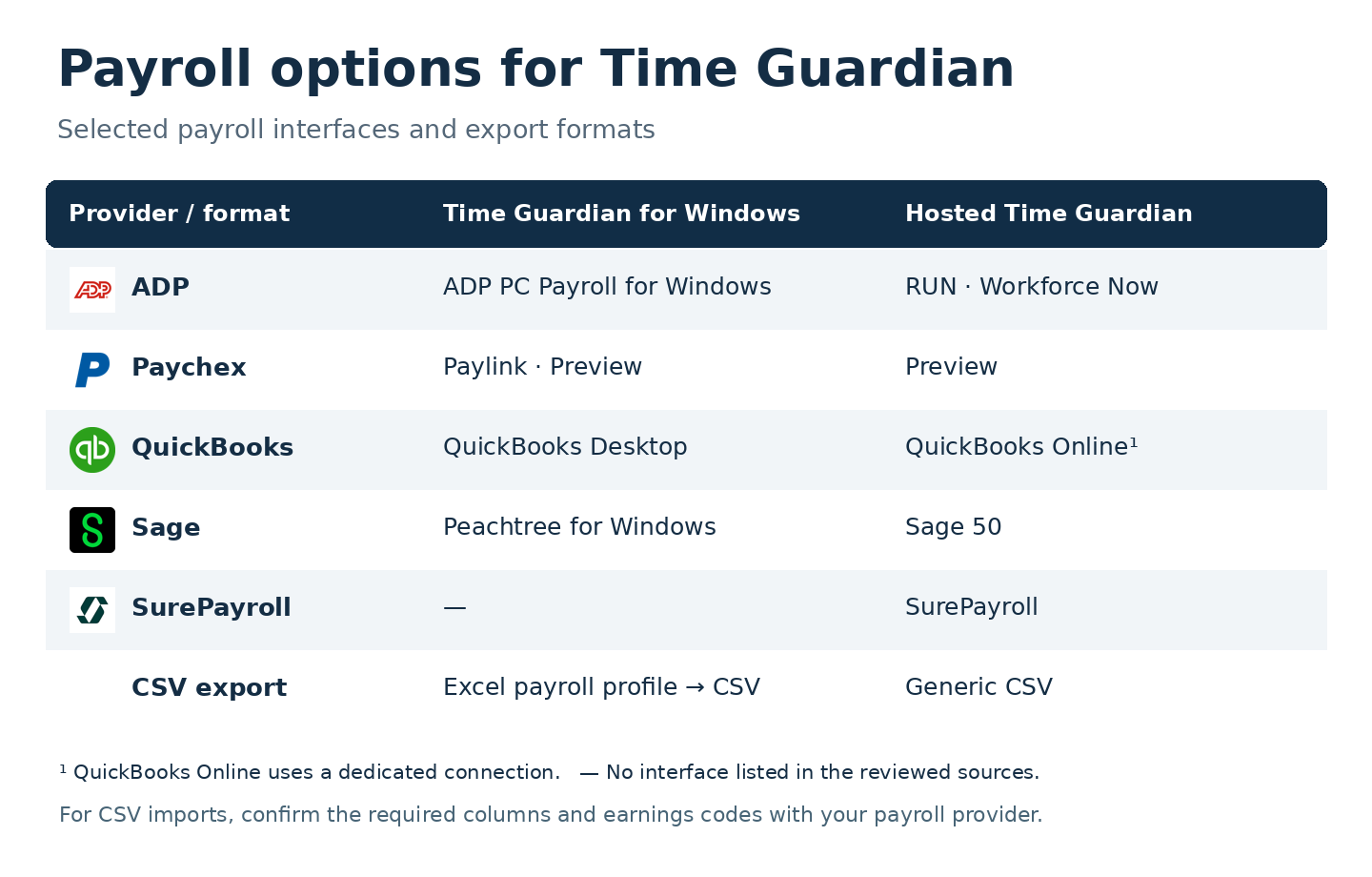
The exact payroll product matters. If your company uses ADP RUN, ask to see an ADP RUN export. If you use QuickBooks, tell the person running the demo whether you use QuickBooks Desktop or QuickBooks Online.
Time Guardian for Windows. Payroll interfaces include ADP PC Payroll for Windows, Paychex Paylink, Paychex Preview, QuickBooks Desktop for Windows, and Peachtree for Windows. For CSV output, select Excel in the payroll export profile.
Hosted Time Guardian. Export approved hours for ADP RUN, ADP Workforce Now, Paychex Preview, SurePayroll, or Sage 50. A generic CSV export is also available. QuickBooks Online users can connect through the dedicated QuickBooks Online integration.
Using another payroll service? Ask your provider for its CSV import template. Check the required columns, employee IDs, and earnings codes against a sample Time Guardian export. Then run the same 40-hour regular and 3-hour overtime example through the import preview.